Import to existing vehicle
If your vehicle has already been created in WooCommerce, follow these steps:
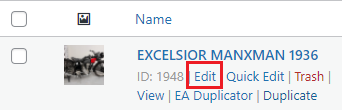
- Go to Products > All Products and find the vehicle you want to edit.

- Hover over the vehicle in the list and click Edit.
- Follow the steps under the Importing media section.
Import with new vehicle
If you are creating a new vehicle product from scratch in WooCommerce, follow these steps:
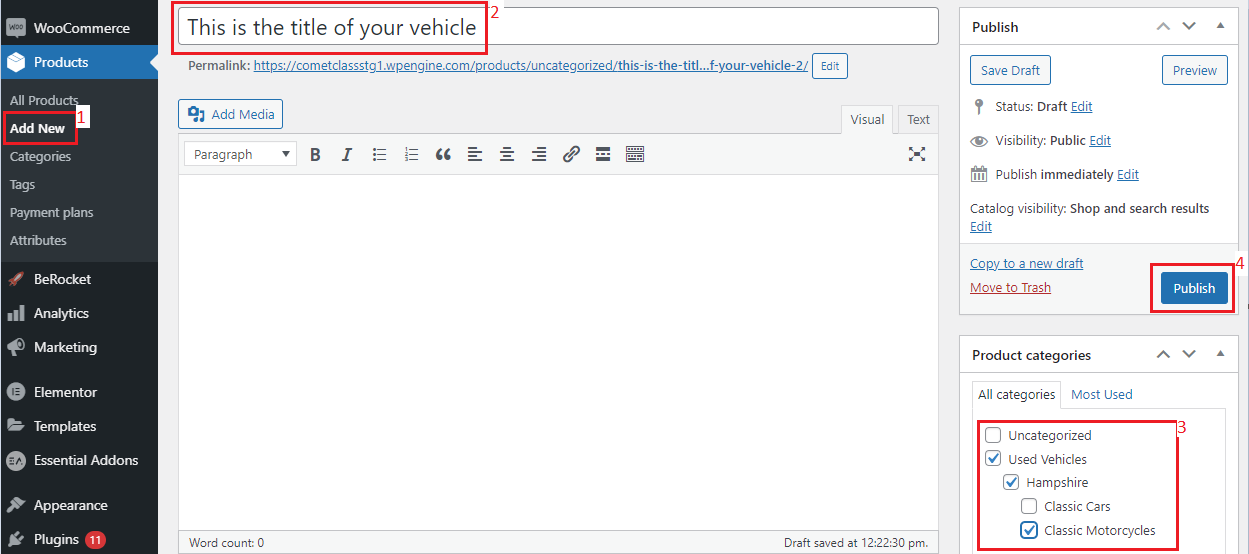
- Go to: Products > Add New.
- Fill in the Vehicle Title.
- Tick the Product Categories for your vehicle.
- Click Publish (or Save Draft if you don't want the page to be public yet).
- You can now begin importing media.
Importing media
(After completing one of the above sections)
- Scroll down the edit page to the b2see section, check the VRM is correct then click Import Media. This should take around 5 to 60 seconds to complete.
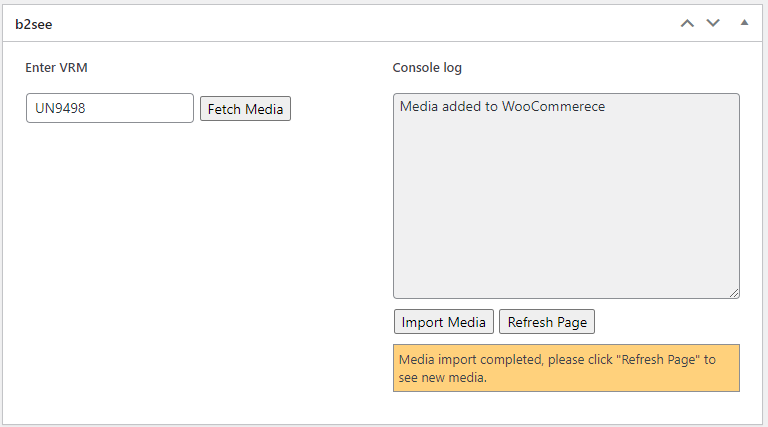
- When media has been added, you will see a prompt to refresh the page. Click the Refresh Page button to see the new media.
- If you would like to make sure the product is displaying correctly, you can view the live product page by scrolling up and clicking the blue Permalink.
