Elements
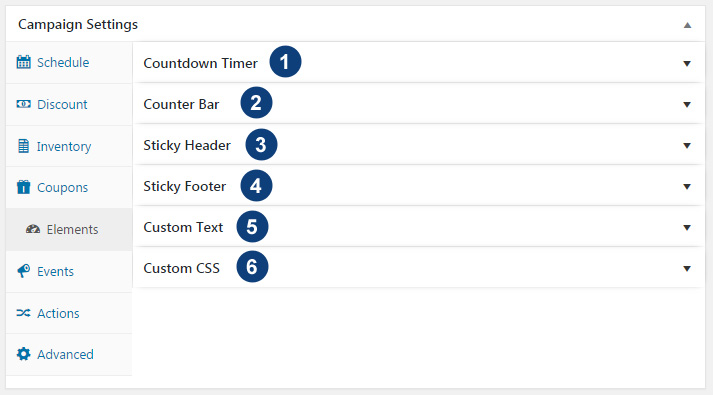
Finale comes with 3 different visual elements to show during the campaign.These are:
You can control the appearance of each of these elements and customize to match your site’s theme.
Watch this short video to learn more
Countdown Timer
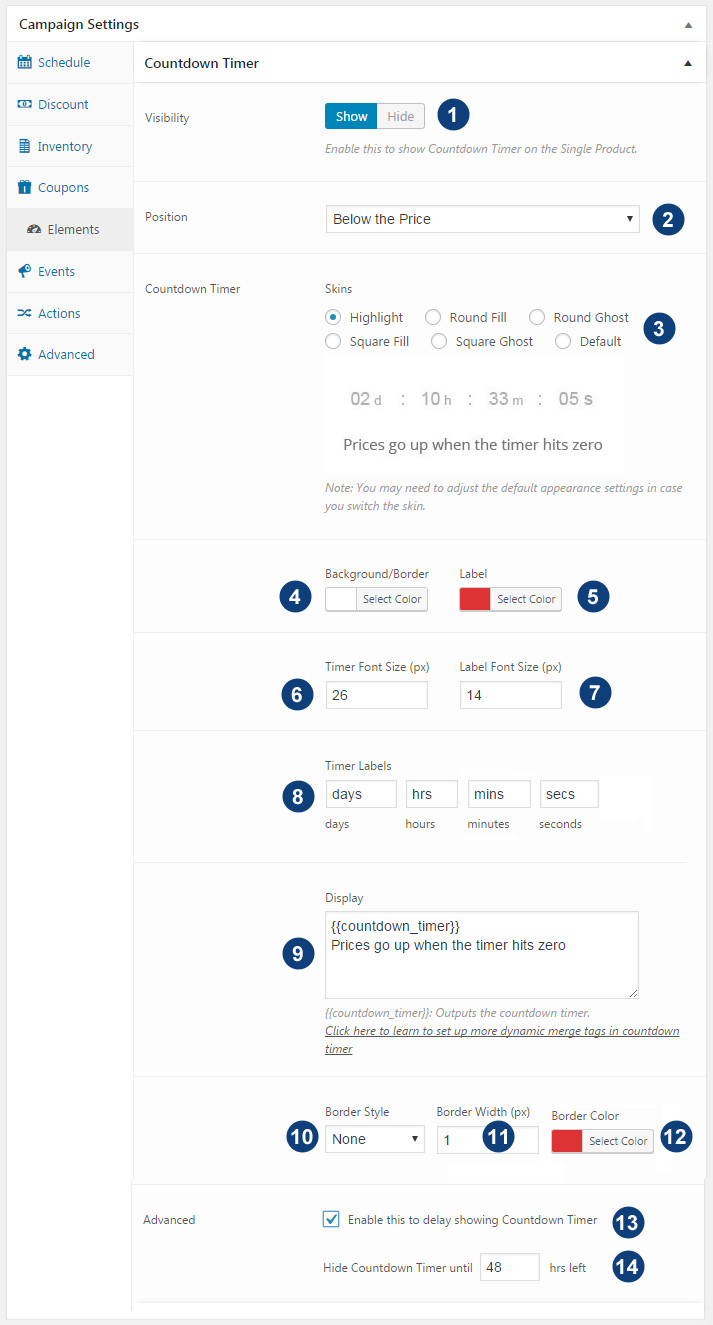
- Enable this to show Countdown Timer on the Single Product.
- Select the position to display countdown timer on your WooCommerce product page
- Choose the Skin to Countdown Timer
- Background/ Border Color of the skin
- Colors for days/hours /minutes/seconds label
- Font Size of ticking timer
- Font Size of the label ( days/hours /minutes/seconds)
- Timer Labels for days/hrs/mins to be shown underneath numerals
- Display Text Area. It uses merge tag {{countdown_timer}} to display the countdown timer as per above configured settings. You can add your own custom text to display above or below the timer.
- Border Style: Leave it to None in case you don’t want any borders
- Border Width (px)
- Border Color
- You can delay showing of counting timer until few hours are left for the sale.Enable this option.
- And enter time left after which you want Countdown Timer to appear
Watch this short video to learn more
Counter Bar
To show counter bar Finale Inventory Should be turned ON.
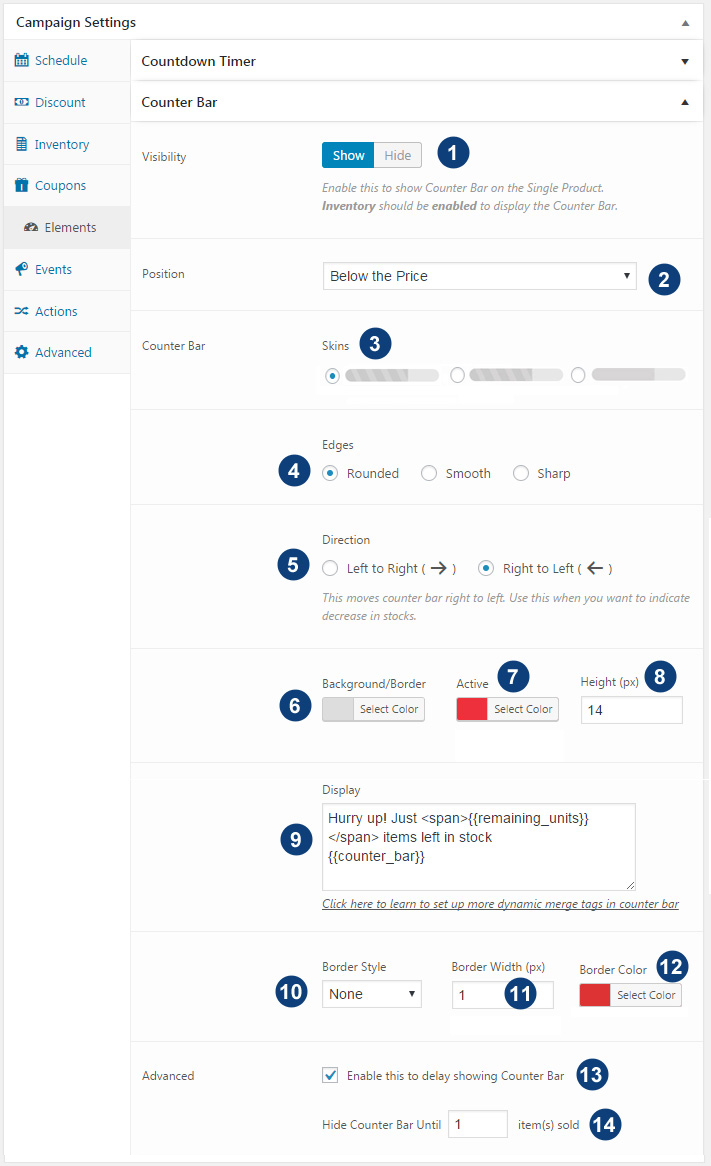
- Enable this to show Countdown Bar on the single product. Note counter bar is only shown when Inventory Goal is set up in Deals
- Select the position to display Counter Bar on your WooCommerce product page
- Choose the Skin to Counter Bar
- Edges of counter bar can be set to Rounded, Smooth or Sharp
- Background Color of the counter bar
- When counter increases the bar increases.Set the color of the counter bar.
- Height of the counter bar
- Display Text Area. It uses merge tag {{counter_bar}} to display the countdown timer as per above-configured settings.You can add your own custom text to display above or below the timer.
- {{total_units}}
Outputs total quantity to be sold during the campaign. Example, Total Units: 10 - {{sold_units}}
Outputs total quantity sold during the campaign. Example, Currently Sold: 5 - {{total_units_price}}
Outputs total price value of total quantity to be sold during campaign. Example, Total Funds To Be Raised: $100 - {{sold_units_price}}
Outputs price value of quantity sold during the campaign.Example, Funds To Raised Till Now: $50 - {{sold_percentage}}
Outputs percentage of quantity sold during the campaign. Example, Campaign Goal: 51% achieved - {{remaining_percentage}}
Outputs percentage of remaining quantity left during the campaign. Campaign Goal: 49% left
- {{total_units}}
- Border Style: Leave it to None in case you don’t want any borders
- Border Width (px)
- Border Color
- You can delay showing of counter bar till few sales are enabled.Enable this option.
- And enter number of sales after which you want Countdown Timer to appear
Watch this short video to learn more
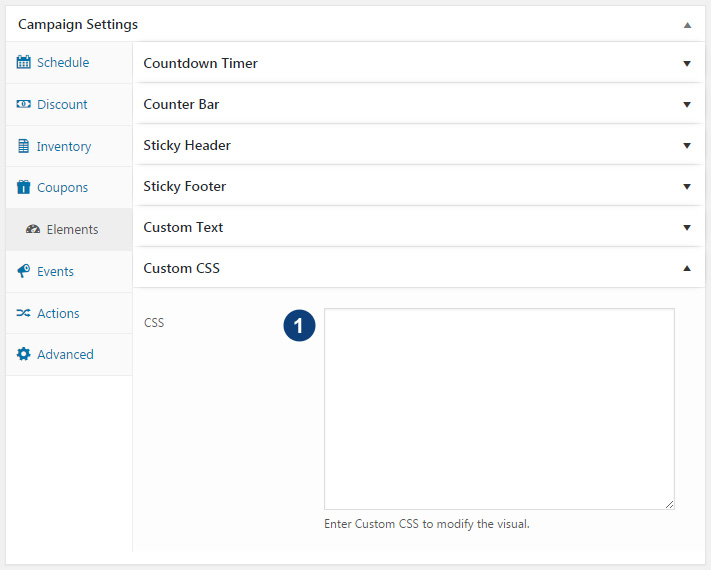
Custom CSS
Watch this short video to learn more
Sticky Header/Footer
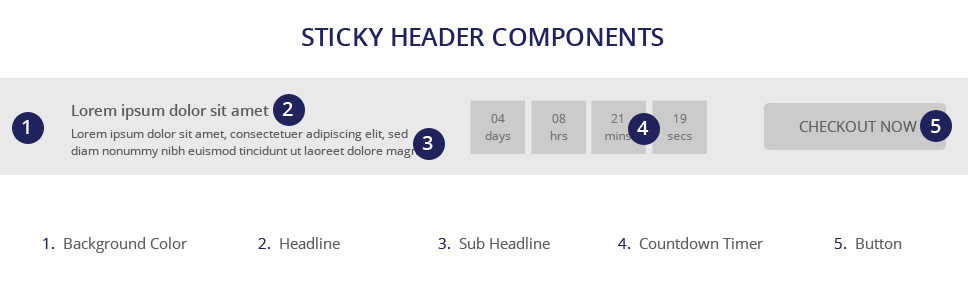
Sticky Header/Footer has 5 Major Components
- Background Color
- Headline
- Sub Headline
- Countdown Timer
- Button
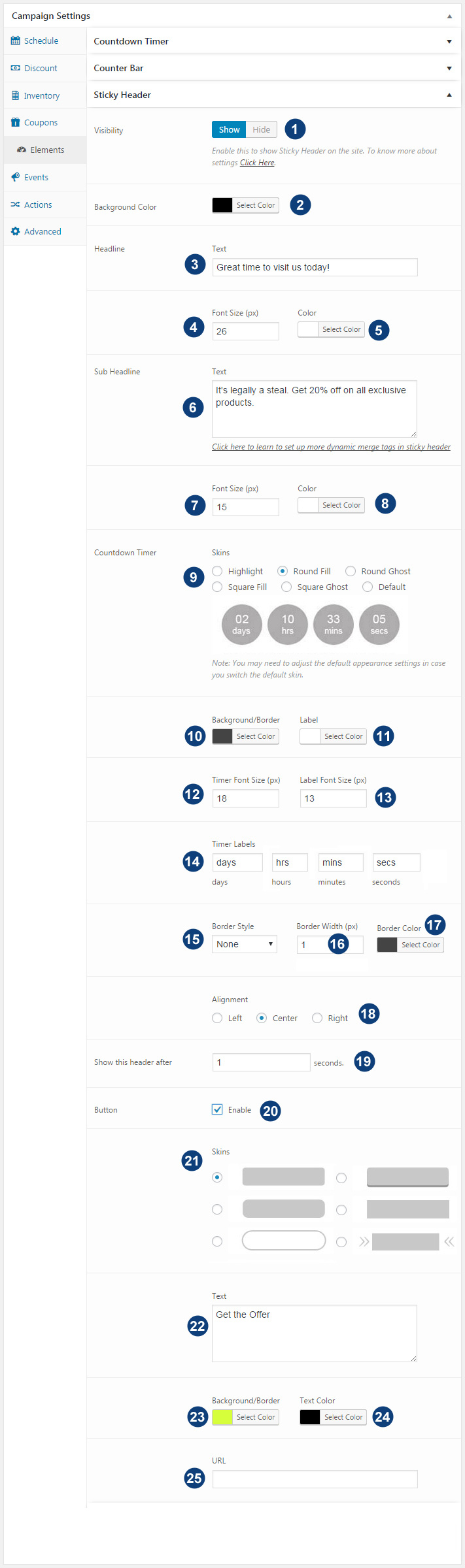
Enable to show sticky header on your site. You can customize each aspect of it from the settings
- Background Color of the sticky header
- Headline Text, Font Size & Color
- Sub Headline Text Font Size and Color
- Countdown Timer: Refer this document to know more about settings
- Buttons: Enable Button, Set its background and text color and mention the URL
Watch this short video to learn more
Custom Text
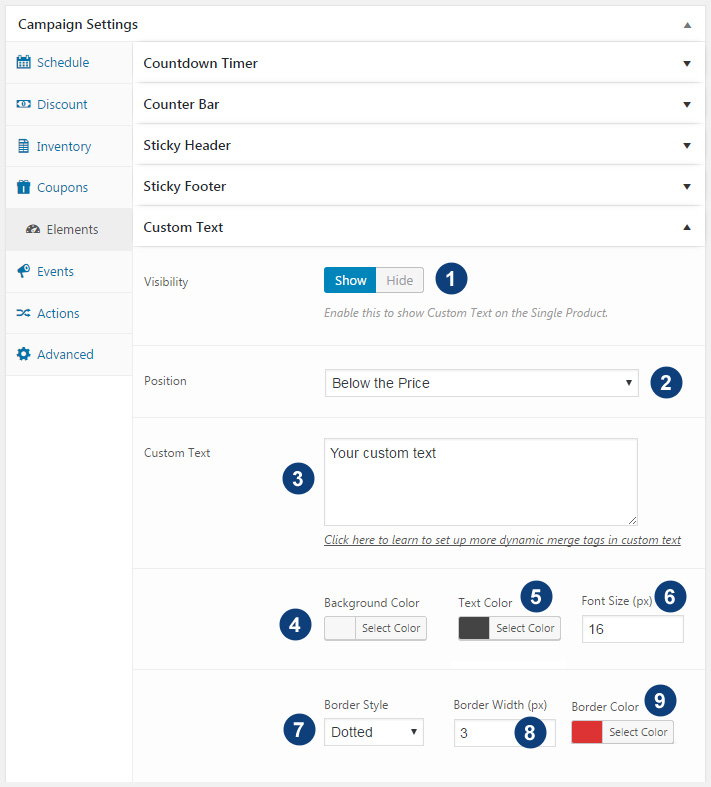
- Enable this to show Custom Text on the Single Product.
- Select the position to display Custom Text on your WooCommerce product page.
Leave to ‘none’ in case you don’t want to show on the single product but want to show using shortcode anywhere. - Display Text Area. You can add your own custom text to display.
- Background Color of the Custom Text area.
- Text colors that input in #3
- Font Size of custom text
- Border Style: Leave it to None in case you don’t want any borders
- Border Width (px)
- Border Color
Watch this short video to learn more