Your site can have multiple administrators, editors, authors and contributors, so you don’t have to manage your site on your own. It also keeps your account secure by giving you a way to allow others to edit/manage your site without using your login.
Other user roles, like “Follower”, “Subscriber”, and “Viewer” allow you to manage who can see content on your site and who receives email updates of new blog posts.
Summary
- Administrator – nothing is off limits* (see note below)
- Editor – has access to all posts, pages, comments, categories, tags, and links.
- Author – can write, upload photos to, edit, and publish their own posts.
- Contributor – has no publishing or uploading capability, but can write and edit their own posts until they are published
- Follower (public sites) / Viewer (private sites only) – can read and comment on posts and pages
- Subscriber – similar to the Follower / Viewer role; can read and comment on posts and pages.
Each user role is capable of everything that a less powerful role is capable of. (In others words, Editors can do everything Authors can do, Authors can do everything Contributors can do, and so on.)
All of your site’s user roles can see the stats: Administrators, Editors, Authors, and Contributors.
WooCommerce Roles
If your site is using WooCommerce, two additional user roles are created: Customer and Shop Manager. Information about these can be found in the WooCommerce documentation.
- Customer – People become Customers when registering via the checkout or sign-up process. Customers: Have read access only for most capacities. This is the equivalent status to a normal blog subscriber / Can edit their own account information / View past/present orders.
- Shop Manager – Is a role you can give someone to manage the shop without making them an Admin. They have all the rights a customer has, and are granted the main capabilities:
manage_woocommerce: Gives shop managers the option to manage all settings within WooCommerce, and create/edit products /view_woocommerce_reports: Gives them access to all WooCommerce reports.
Other plugins or custom work may also create additional user roles. Check your plugin documentation for more information or get in touch with us at support@medialinksonline.com.
Updating a Users Role
You can find your WordPress permissions right within your Dashboard.
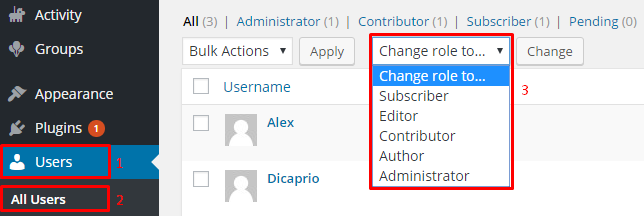
Log in to your WordPress Admin Panel, navigate to Users → All Users.
You can see the current WordPress roles available on your website and change them simply by selecting a user and changing the role type to whatever you need