Syncing the stock on yourWordPress site is easy but depending on what sort of feed you have, you may never need to do this action for yourself as the plugin that powers the stock sync is set to auto sync either once daily, twice daily or hourly depending on your requirements.
Types of Feed:
There are various ways stock is loaded on to your WordPress website. They are all fed centrally via our own CMS system but they come to us first via various suppliers:
- AutoTrader TGM, MCN, Catalyst, Motorcycle Supermarket, EvoPos & Gforces Feeds: Comes to us at 3:00am daily
- TrueTrak Feed: Comes to us at 3:30am, 12:30pm & 5:30pm
- Room 58 Feed: Comes to us at 1:30am
All of the above feeds are then processed into your catalogue in our CMS and then AutoFed to your WordPress website at 7:00am daily depending on sync settings.
Adding Stock Manually
The final method for anyone not using any of the above feeds is manually inputting them into the CMS. If you need any help with this, we have a user guide here for you to read.
Force Syncing the Stock
If you feel like you need to run a manual sync of the WordPress site then this is easy, you just need to follow these steps:
- First of all login to your WordPress website
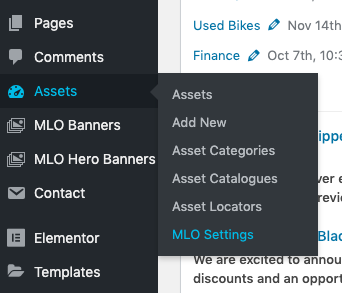
- Navigate to the WordPress Dashboard and go to 'Assets > Settings'
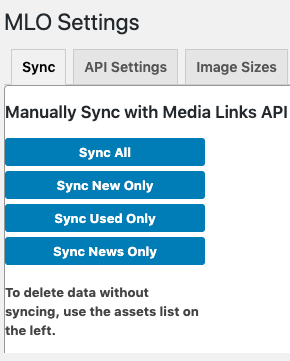
- Once you've click these you should see the following screen, click 'Sync Used Only'
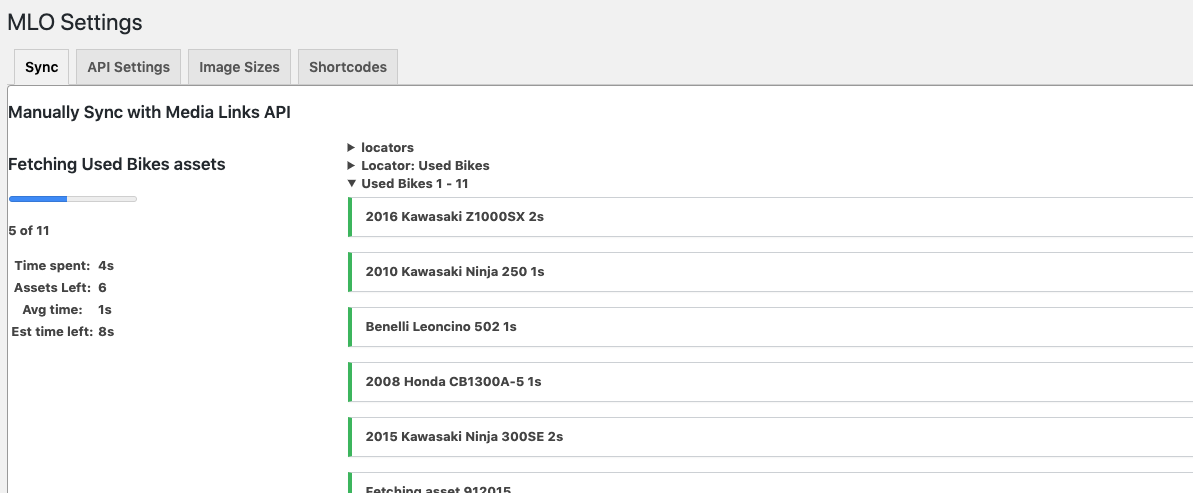
- After clicking this you'll see your stock start to sync and pull down from your catalogue on our servers
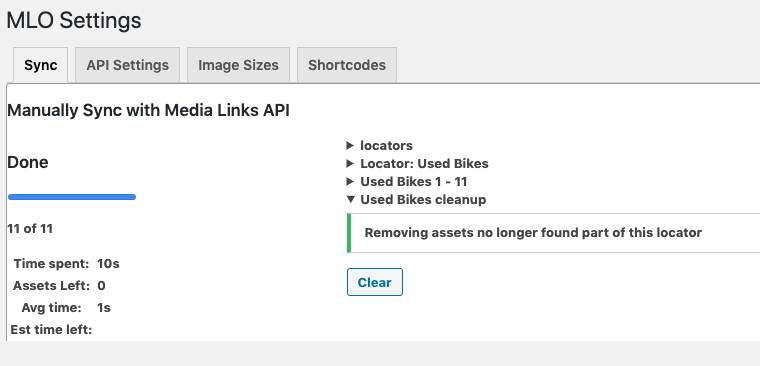
- When it's completed, either navigate away from this page or click 'clear' and you are all done.
If you have any questions or queries then please contact us at support@medialinksonline.com