This guide will show you how to create custom new model pages within WordPress using 'Pages' and pre-designed templates and widgets. Please follow the instructions carefully and please note, this is not the automatically fed model data that media links online provides, you'll need to manage and keep up to date with this your self.
Login -
Please login to your WordPress dashboard. To do this, you can take a look at this user guide here - Logging into your wordpress website.
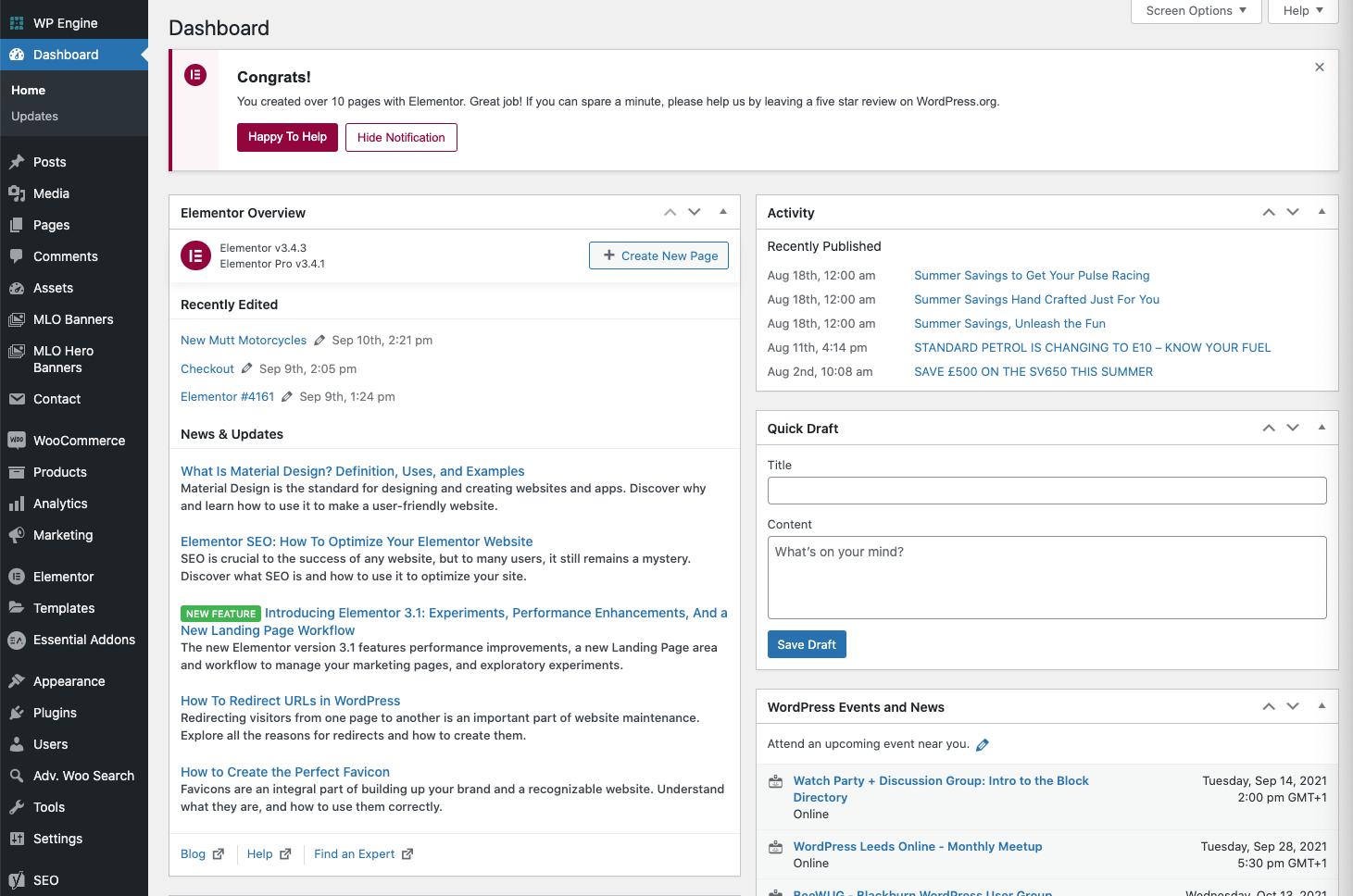
Once logged in, you should see the above screen.
Navigating to the pages area
Please navigate to the Pages tab. You can access this via the left hand toolbar on your dashboard.
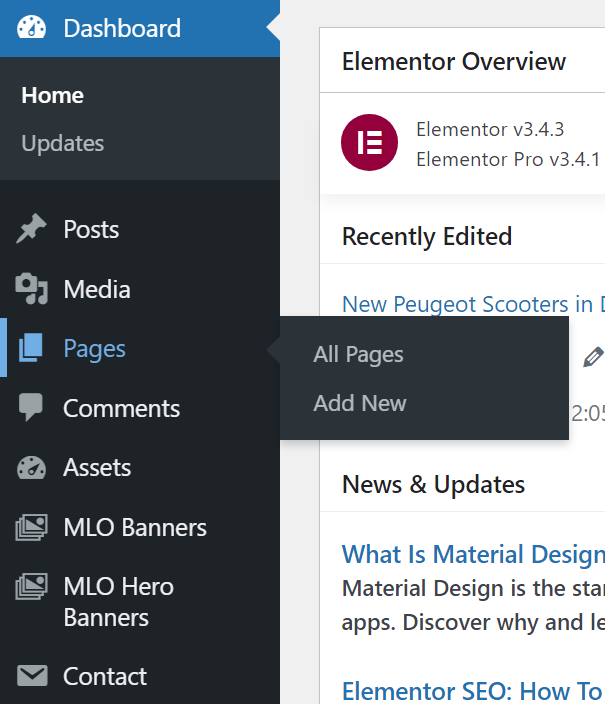
Once you have selected the pages tab, you can now edit existing models you have created within Wordpress, or add new ones. Follow the below steps which detail how to add new models.
_____________________________________________________________________________________________________
Creating new models
To begin, please look for the three templates MLO have created to assist you in adding new models. Please do not link these pages up anywhere or use them to create actual model ranges - they should remain as templates for future reference.

Firstly, select EA DUPICATOR on the page OWN MODEL RANGE. This will create a TOP level landing page. If your brand has any categories, such as Enduro or 125cc, this will be where you create those categories for users to click.
Once you have selected EA duplicator, this should then bring up a duplicated page in 'draft' either below or above the existing live page.

Please select 'edit' which will appear if you hover over the blue text. For this guide, MLO are going to set up Peugeot as a brand, with one model.
Now you need to rename the page to whichever manufacturer you are setting up, so for this example we are doing Peugeot. To aid in SEO, it's worth naming the pages '[brand] New Motorcycles in [your location] as below.
For the example we are working with here, it would generate a full page URL like this - https://www.websiteurlhere.co.uk/new-peugeot-scooters-in-devon/

Please select 'save draft' once you have updated the name.
PLEASE NOTE: It's good practice to save your work regularly to avoid data loss should you experience a power cut, drop in internet or damage to your device.
Setting up your page SEO Meta Data
Now we need to update the Yoast SEO area of the page. For more information on this please look at this help section here - https://mlosupport.zendesk.com/hc/en-us/articles/4408037748881
Once the above is complete, you can save the draft and then click 'edit with Elementor'
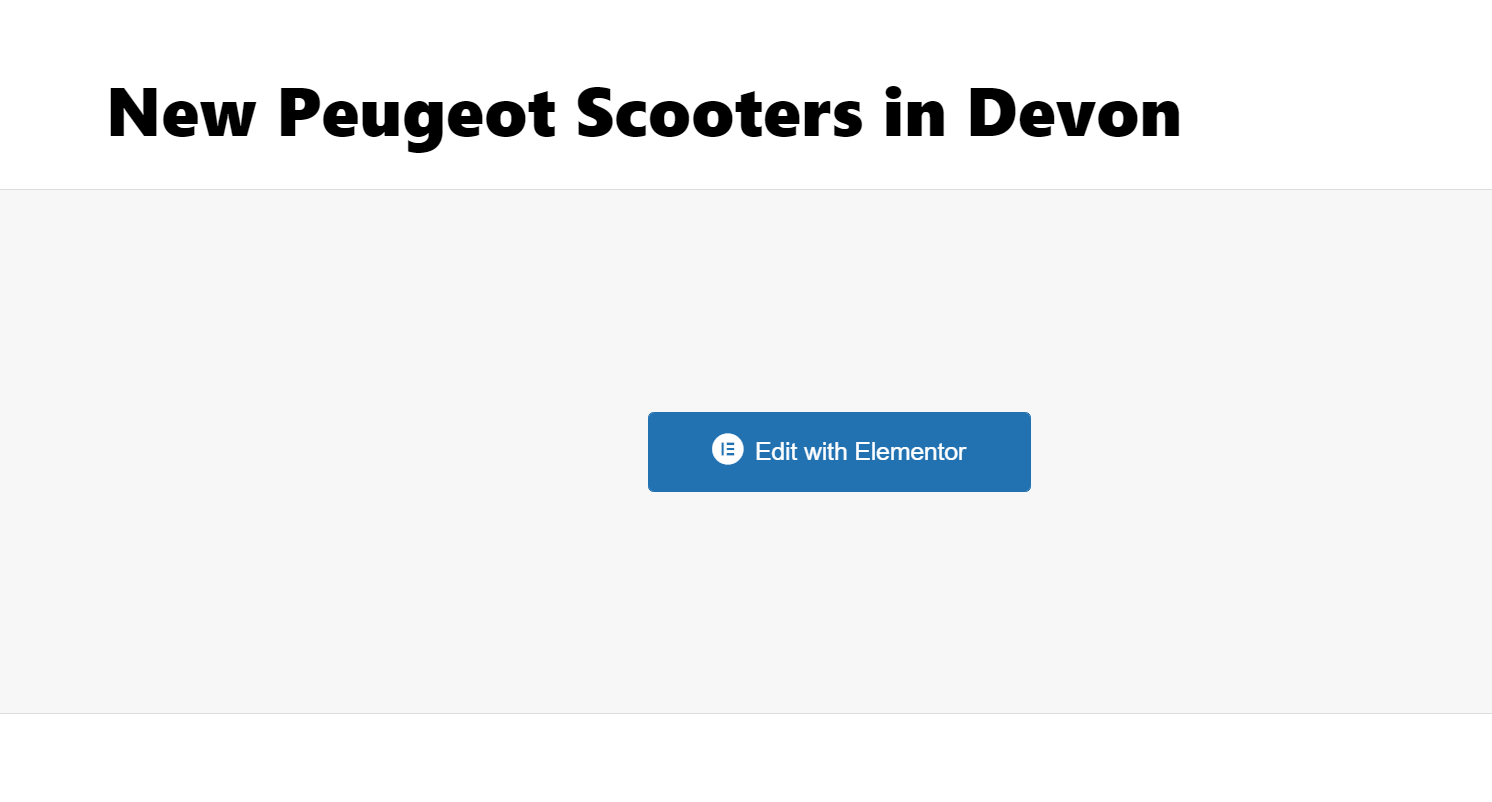
Editing content in the elementor page builder
From here you will be taken to a blank Elementor page where you need to load one our pre-made templates to get you started. Depending on what area of the new model page creation you are in you need to choose one of the following templates by clicking on the folder icon, then 'My Templates'.
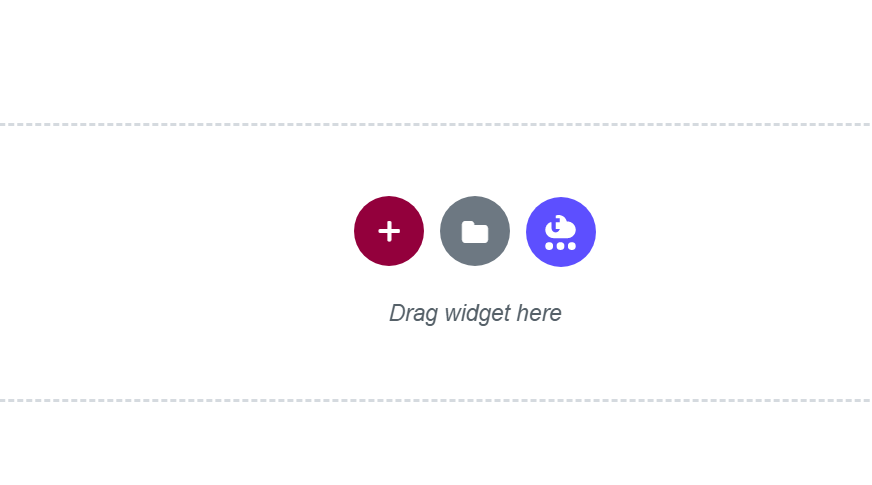

We have loaded the following templates into your site depending on if you are on:
- The main brand landing page which lists categories
- A sub-category page which lists the models with the category
- The actual model page with all the detail
Hover over the one you need and select the 'Insert' button.
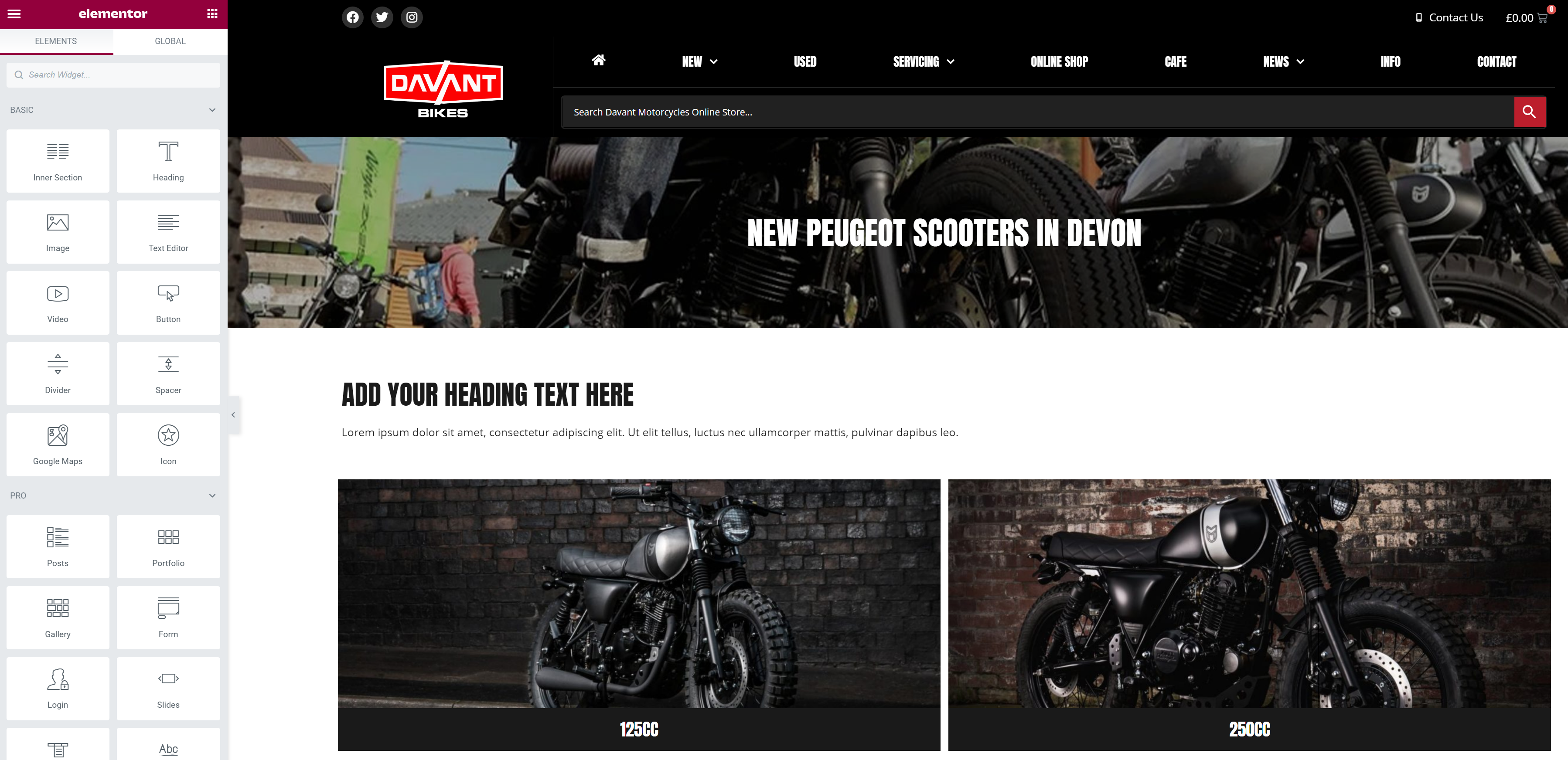
For this step, you need to choose the template marked 'Top Level Category Template'

The page should then re-load with the template applied ready for you to edit to your liking. We've only created this template as a guide but please feel free to create something of your own.
For more details instructions on how the Elementor page editor works please read this guide.